

Imagine having a personal cloud storage system that is compact, affordable, and customizable – all built from a simple Raspberry Pi. With the increasing volume of digital data, the demand for efficient storage solutions has never been more critical. Raspberry Pi offers a unique and promising opportunity to create a bespoke cloud storage environment. As data privacy gains prominence, many tech enthusiasts are embracing DIY Raspberry Pi projects to maintain better control and security over their information.
- Understanding Cloud Storage Basics
- Assessing Raspberry Pi's Capabilities for Cloud Use
- Hardware Requirements
- Software Solutions for Personal Cloud
- Initial Setup and Installation
- Configuring Secure Access Controls
- Optimizing Performance
- Enabling External Access
- Ensuring Reliable Backups
- Managing and Monitoring Your Cloud
- Addressing Common Issues
- Environmental and Power Efficiency Considerations
- FAQs:
While cloud storage typically requires substantial resources, a touch of innovation can transform a Raspberry Pi into a formidable cloud powerhouse. These compact devices hold the potential to efficiently run a Raspberry Pi cloud service tailored to individual needs. Before embarking on your Raspberry Pi project, it is important to familiarize yourself with its capabilities, the necessary hardware, and the range of available software solutions. This foundational knowledge paves the way toward making Raspberry Pi cloud storage a reality.
Understanding Cloud Storage Basics
# Example: Test internet connectivity on Raspberry Pi
test -w <(curl -Is https://www.google.com | head -1) && echo "Internet OK" || echo "Check your connection"
Cloud storage is a digital service that allows you to store data and access it over the internet. Unlike traditional storage methods, cloud storage provides flexibility and accessibility, enabling users to retrieve their files from anywhere, as long as they have an internet connection.
Key Components of Cloud Storage:
- Data Centers: These are large facilities equipped with servers that store your data. Cloud providers maintain these centers to ensure data safety and availability.
- Internet Access: Cloud storage requires a stable internet connection to upload and download data.
- Remote Accessibility: One of the core benefits of cloud storage is the ability to access data remotely, offering convenience to users who travel or work in different locations.
Types of Cloud Storage:
- Public Cloud: Offered by vendors like Google Drive and Dropbox, accessible by anyone who subscribes.
- Private Cloud: Designed for specific users or organizations, providing customized control and security.
- Hybrid Cloud: Combines the elements of both public and private clouds, offering flexibility.
Cloud storage is a crucial element for both personal use and business operations, facilitating seamless data management and sharing.
Assessing Raspberry Pi’s Capabilities for Cloud Use
Assessing the Raspberry Pi’s capabilities for cloud use involves understanding its potential to serve as a compact and cost-effective private cloud platform. Due to its low power consumption and affordable price, the Raspberry Pi is a popular choice for hobbyists and tech enthusiasts who want to explore personal cloud solutions.
# Check CPU and memory availability on Raspberry Pi
vcgencmd measure_temp
free -h
At the heart of this raspberry pi project is the device’s ability to act as a lightweight server. With a proper setup, the Raspberry Pi can host a raspberry pi cloud service that can be accessed through a local network or even from the internet with the appropriate configuration, such as port forwarding or setting up an IP address.
Utilizing an external hard drive or USB drive as storage, the Raspberry Pi can function as a compact cloud storage unit. Many users opt for external SSDs or HDDs to expand the storage route. Software solutions like ownCloud server or NextCloudPi dashboard can be installed to manage the cloud environment via a user-friendly web interface.
In conclusion, the Raspberry Pi proves to be an excellent tool for those interested in experimenting with cloud storage. Whether for schools, homes, or small businesses, understanding how to make raspberry pi cloud storage can be both an educational and practical raspberry pi project.
Hardware Requirements
Building a Raspberry Pi cloud storage solution is an exciting Raspberry Pi project that can transform how you handle files. With a Raspberry Pi, you can create a private cloud storage system using various models, such as the Pi 3, Pi 4, or the compact Pi Zero. However, for optimal performance, the Raspberry Pi 4 is recommended due to its superior processing power and RAM, making it ideal for managing a personal cloud server.
Here’s a concise guide to the essential hardware needed:
- Raspberry Pi 4: The core of your setup, available in multiple RAM sizes.
- Micro SD Card (16GB or higher): Serves as the operating system’s storage route.
- Power Supply: A reliable 5V/3A USB-C power adapter.
- External HDD/SSD: For ample and scalable USB storage capability.
- USB Drive: For extra storage and flexibility.
- Ethernet Cable: Connects your Raspberry Pi to the local network for reliable access.
- Case: A DeskPi Pro case helps protect and cool your device.
This hardware setup creates a foundation for a successful Raspberry Pi cloud service, allowing for seamless file operations over your local network.
Software Solutions for Personal Cloud
The software you’ll use can turn your microcomputer into a robust Raspberry Pi cloud storage solution. This allows you to access and manage your files from anywhere, thanks to efficient cloud services. The main focus here will be understanding different software solutions and choosing the right one to fit your needs.
Nextcloud vs ownCloud: Comparison and Choice
# Update and install NextcloudPi
sudo apt update && sudo apt upgrade -y
curl -sSL https://raw.githubusercontent.com/nextcloud/nextcloudpi/master/install.sh | bash
Nextcloud and ownCloud are popular choices for setting up Raspberry Pi cloud service systems. They share a common lineage but have evolved to meet different user needs. Nextcloud is known for its vibrant community support and rapid development pace, offering more frequent updates and a wide array of plugins. And it can integrate seamlessly with various third-party applications.
On the other hand, ownCloud offers a more stable enterprise-focused solution. It’s perfect if you’re looking for a reliable and straightforward Raspberry Pi cloud storage setup. ownCloud’s strength lies in its ease of use and focus on business users, providing detailed documentation and robust security features.
# Install dependencies
sudo apt install apache2 mariadb-server libapache2-mod-php7.4
# Download and setup ownCloud
wget https://download.owncloud.org/community/owncloud-latest.tar.bz2
tar -xjf owncloud-latest.tar.bz2 -C /var/www/
sudo chown -R www-data:www-data /var/www/owncloud
Exploring Alternative Software: Pidora and DietPi
There are alternative frameworks like Pidora and DietPi that offer lightweight solutions for your Raspberry Pi cloud service. Pidora, a Fedora-based system, is known for its user-friendly interface and ease of use. It’s great choice for beginners who wanna dive into the world of personal cloud storage without being hindered by complex configurations.
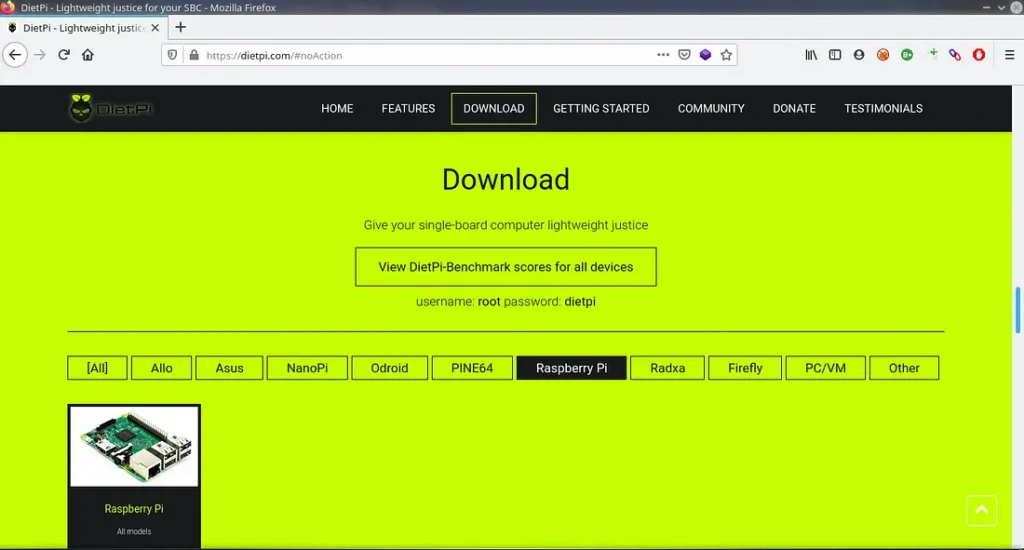
DietPi, on the other hand, is celebrated for its efficiency. As a highly optimized system, it offers customizability with ease, making it suitable for those who want a fast and responsive raspberry pi project without extra bloat. Its installation process is straightforward, allowing you to focus on setting up your cloud services quickly. These systems may not offer full range of features found in Nextcloud or ownCloud but are excellent for users interested in simplicity and efficiency.
Custom Solutions: Flask API and React Interfaces
For those who seek a bespoke Raspberry Pi cloud storage experience, building custom solutions using Flask API and React interfaces can be immensely rewarding. Flask, a lightweight web framework, allows you to create a custom Raspberry Pi cloud service tailored to your specific requirements. It provides a simple and flexible way to handle cloud server tasks and access various file operations smoothly.
Combining Flask with React, a powerful JavaScript library for building user interfaces, can result in an engaging web interface for your Raspberry Pi project. This custom approach is ideal for tech enthusiasts who want to try their hand at programming, offering endless possibilities to customize and scale your Raspberry Pi cloud storage.
The building blocks provided by Flask and React enable developers to experiment and integrate additional features that commercial software might lack. Just ensure you have the foundational skills in these technologies to make the most of this approach, allowing your Raspberry Pi to fulfill your dream of private cloud storage with a personal touch.
Initial Setup and Installation
Transforming your Raspberry Pi into personal cloud storage solution is an exciting and rewarding Raspberry Pi project. It allows you to have your very own Raspberry Pi cloud service, offering limitless possibilities for file storage and management. Ready to dive in? Let’s start with preparing your Raspberry Pi.
Begin by gathering the necessary hardware, including a Pi board, a power supply, and a Micro SD card with at least 16GB of space. Additionally, you’ll need an external storage device, such as an external HDD or SSD, to store your files. A USB Drive can also be used if you prefer a smaller storage option.
Once you have all the hardware, connect the Raspberry Pi to your local network using either Wi-Fi or an Ethernet cable. This setup will enable your Raspberry Pi to communicate with other devices on the network. Before proceeding, make sure you have an HDMI cable and a compatible monitor handy, as these will be useful in the initial setup phase. With everything in place, it’s time to install the operating system.
# Download Raspberry Pi OS Lite
wget https://downloads.raspberrypi.org/raspios_lite_armhf_latest
# Flash image to SD card
sudo dd if=raspios_lite_latest.img of=/dev/sdX bs=4M status=progress conv=fsync
Preparing the Raspberry Pi
Choose a reliable operating system like Raspberry Pi OS or Raspbian, both of which are excellent choices for this project. Begin by using a computer to download the OS image file and then use a tool like Etcher to flash the image onto the Micro SD card.
Once the OS is installed on the Micro SD card, insert it into the Raspberry Pi. Connect the Pi to the monitor via HDMI to view the boot process. As the OS boots up, follow the on-screen instructions to complete the initial setup, such as setting up an admin account and connecting to your local network. At this point, your Raspberry Pi is ready to host a cloud server.
Installing the Operating System
With the operating system installed, the next step is setting up the cloud software that will turn your Raspberry Pi into a personal cloud storage solution. Two popular choices for this part of the Raspberry Pi project are ownCloud and NextCloud. Both offer user-friendly web interfaces, which are essential for easy file management and operation.
First, install the cloud software by accessing the Raspberry Pi’s terminal and entering the appropriate installation commands. Once the software is installed, configure the settings to suit your needs. This includes setting up SSH keys for secure remote access and configuring the API URL used by the web interface.
You’ll need to set up port forwarding on your router if you want to access your cloud from outside your local network. Be sure to secure your cloud with a strong password to protect your data. By following these steps, you’ll have a fully operational Raspberry Pi cloud storage system, ready to securely store and manage your files at any time.
sudo raspi-config  # Enable SSH, set hostname, expand filesystem
sudo apt install -y mailutils  # For email alerts
Setting Up the Cloud Software
To ensure that your Raspberry Pi cloud storage operates securely, it’s crucial to configure access controls effectively. This step involves establishing strong security measures to prevent unauthorized access and protect your data. One of the primary aspects of secure access is user authentication, which verifies the identity of each person attempting to use the Raspberry Pi cloud service. Additionally, setting trusted domains and configuring firewalls contribute significantly to a robust security framework. Let’s delve into these components to understand how to implement them effectively.
Also read: Know how to Install Pi Hole on Raspberry Pi – setup guide.
Configuring Secure Access Controls
User authentication is a critical aspect of securing your Raspberry Pi cloud storage. It provides a layer of protection by requiring users to verify their identities before gaining access. Start by creating an admin account, which will have the highest level of access to manage other user accounts. Using SSH keys is highly recommended for secure authentication. These cryptographic keys replace traditional passwords, offering more robust security. Each user would have their own SSH key, ensuring that only verified users can access the cloud server.
When setting up user authentication, consider the utilization of API URLs and configuration files to streamline the authentication process and manage user credentials efficiently. These tools ensure that your Raspberry Pi project remains secure while also being flexible enough to accommodate future updates or user additions.
Implementing User Authentication
# Generate SSH key pair on your local machine
ssh-keygen -t rsa -b 4096
# Copy public key to Raspberry Pi
ssh-copy-id pi@raspberrypi.local
Choosing trusted domains for your Raspberry Pi cloud storage is fundamental for maintaining secure connections. Trusted domains refer to the list of domains through which the cloud service can be accessed safely. This list ensures that requests to the server come from legitimate sources. Begin by identifying which domains will be used to access your private cloud storage. These may include the IP addresses associated with your local network or specific web addresses.
Configuring the trusted domains involves editing the configuration files of the cloud software used, such as ownCloud or Nextcloud. This configuration limits possible entry points to only those you’ve marked as safe. Make sure to regularly update this list and remove any domains that are no longer in use to maintain the security and efficiency of your Raspberry Pi cloud service.
Setting Trusted Domains
# Edit Nextcloud config file
sudo nano /var/www/nextcloud/config/config.php
// Add trusted domain entries
  'trusted_domains' => [
    'localhost',
    '192.168.1.100',
    'your-ddns-domain.example.com'
],
Configuring firewalls and security protocols is essential for protecting your Raspberry Pi cloud storage from external threats. Firewalls serve as barriers, controlling the incoming and outgoing network traffic based on predetermined security rules. To set up a firewall, you can use software tools like UFW (Uncomplicated Firewall) to define these rules easily.
Firewalls should be configured to allow only the necessary ports used by your cloud service. This typically includes securing the ports for web access and SSH. Port forwarding should be used cautiously, ensuring that only essential services are exposed to the internet. Additionally, implementing secure protocols like TLS (Transport Layer Security) encrypts data transmitted between the server and clients, reinforcing your Raspberry Pi’s defenses.
By meticulously setting these protocols and maintaining up-to-date security measures, you can keep your personal cloud storage safe from potential cyber threats, ensuring a smooth and secure user experience.
Configuring Firewalls and Security Protocols
Transforming a Raspberry Pi into a personal cloud storage solution is an exciting project that not only enhances your tech skills but also gives you control over your data storage. The Raspberry Pi, with its efficient performance and low cost, can be an ideal device for this task. To maximize the efficiency and functionality of your Raspberry Pi cloud storage setup, it’s essential to focus on enhancing its performance.
With the right adjustments, your Raspberry Pi can smoothly handle data transfers and server requests, offering a seamless experience comparable to commercial cloud storage services.
sudo apt install ufw
sudo ufw allow OpenSSH
sudo ufw allow 80,443/tcp
sudo ufw enable
Optimizing Performance
To get the most out of your Raspberry Pi project, ensure that your storage setup is optimized for speed and reliability. Utilizing an external SSD instead of an HDD can significantly boost data transfer rates, thanks to the quick read and write capabilities of SSDs. Another great option is linking a USB drive to your Pi for additional storage flexibility.
# Create mount point\
sudo mkdir /mnt/cloud
# Add entry to /etc/fstab
UUID=YOUR-SSD-UUID /mnt/cloud ext4 defaults,noatime 0 2
sudo mount -a
You should also consider configuring a local network storage route, so devices on the same network can access the Raspberry Pi cloud service more quickly. This setup reduces the reliance on your public IP address and enhances internal data flow, resulting in improved overall performance.
Enhancing Storage Performance
Adjusting your Raspberry Pi settings is critical in optimizing your cloud storage system. First, ensure you have a strong power supply to prevent performance throttling. Overclocking the Raspberry Pi can also boost performance, but remember that this requires adequate cooling solutions to prevent overheating.
Configuring port forwarding properly will also be necessary to allow external access to your Pi cloud, using a dynamic DNS service can help manage changing IP addresses efficiently. Finally, SSH keys are essential for secure remote management of your cloud server. By fine-tuning these settings, you’ll see noticeable improvements in the Raspberry Pi cloud storage function.
Adjusting Raspberry Pi Settings for Efficiency
The project enables you to access your files from anywhere in the world. However, accessing your Pi cloud storage outside your local network requires more than just a simple setup. You need to make sure your Pi has external access while maintaining security. This will involve using port forwarding and setting up dynamic DNS to ensure your cloud server remains accessible and operation-ready at all times. By establishing these connections, you transform your Pi into a raspberry pi cloud service, making your data storage both private and conveniently reachable.
Also read: How to make your own Raspberry pi VPN at home – Step by Step guide!
Enabling External Access
When you set up port forwarding, you’re essentially opening a door that allows data to pass through your router and reach your Raspberry Pi. Your router typically acts like a bouncer, letting in only specific information that’s predefined to be on the guest list.
Service: HTTP
External Port: 80
Internal IP: 192.168.1.100
Internal Port: 80
Protocol: TCP
To start, you’ll access your router’s web interface, usually through its IP address. Once inside, find the port forwarding section. You’ll need to create a rule that forwards a specific port (commonly port 80 or 443 for cloud storage solutions) to your Raspberry Pi’s local IP address. This tells your router where to send incoming data requests for your personal cloud storage. Be sure to choose a port that’s generally open and not used by other services to avoid conflicts.
Additionally, use secure SSH keys for remote access to your Raspberry Pi. This enhances security by replacing traditional password logins, safeguarding your raspberry pi project against unauthorized access. Port forwarding may seem daunting at first, but this configuration is what bridges your private cloud storage from your home to the wider world.
Understanding Port Forwarding
Dynamic DNS (DDNS) serves as a helping hand, ensuring that even when your public IP address changes, you can still access your Raspberry Pi cloud storage remotely. Internet Service Providers (ISPs) often assign dynamic IP addresses that change periodically, which can disrupt your external access setup. This is where DDNS comes in, acting as a constant link between you and your Raspberry Pi cloud service.
# Install and configure DuckDNS updater
sudo apt install curl
echo "urls=\nhttps://www.duckdns.org/update?domains=your-subdomain&token=your-token&ip=" > ~/duckdns/duck.sh
chmod +x ~/duckdns/duck.sh
(crontab -l ; echo "*/5 * * * * ~/duckdns/duck.sh >/dev/null 2>&1") | crontab -
To set up DDNS, start by choosing a dynamic DNS provider. Many offer free services that work perfectly for personal use. Once registered, you’ll receive an API URL that helps map your ever-changing IP address to a consistent domain name. This domain name becomes your Raspberry Pi cloud storage’s permanent address.
Configure your router or Raspberry Pi to update the DDNS service with your current public IP address automatically. This automatic update process is typically done by running a simple script or using the DDNS feature in your router settings. This ensures that no matter how often your IP address changes, you can seamlessly access your data through a memorable and consistent URL.
These careful steps ensure that external access to your personal raspberry pi cloud storage remains uninterrupted, providing peace of mind and continual access to your important files. Once both port forwarding and DDNS are set up, managing and accessing your cloud storage becomes a breeze.
Setting Up Dynamic DNS
Creating a reliable backup system is an essential part of safeguarding your data. One effective solution is using raspberry pi cloud storage, which is a popular raspberry pi project. This involves turning your Raspberry Pi into a personal cloud server, allowing you to store and access files from anywhere.
To start, you need a Raspberry Pi, an external hard drive or SSD device, and a secure network connection. First, install an operating system like Raspberry Pi OS on a Micro SD card. Connect your external HDD or USB Drive to the Raspberry Pi for extra storage.
you can make your own vpn using raspberry pi.
Setting up, configure your Pi as a cloud server with a tool like NextCloudPi or ownCloud server. These programs provide a web interface to streamline file management. Port forwarding on your router is necessary to access the system remotely, using your public IP address to connect to the cloud service securely.
Regularly update the configuration file and backup your data routinely. Maintaining a reliable backup system with your Raspberry Pi ensures your personal cloud storage is both efficient and secure, giving you peace of mind that your critical files are protected.
Ensuring Reliable Backups
Managing and monitoring your cloud can seem daunting, but with the right tools and strategies, it becomes manageable. First, it’s essential to have a clear understanding of your cloud infrastructure, which often includes a combination of public and private cloud resources. Implementing a cloud management platform can streamline this process by offering visibility into all your cloud activities.
# daily_backup.sh
#!/bin/bash
rsync -a --delete /var/www/nextcloud /mnt/cloud/backups/$(date +%F)
Monitoring your cloud involves keeping track of various metrics such as performance, usage, and security. Using tools like APIs, you can automate the monitoring process to receive real-time updates and alerts. Additionally, setting up dashboards offers a visual representation of your cloud’s performance and helps in quickly identifying any issues.
Regularly reviewing usage patterns and costs is also crucial. This ensures that you’re optimizing your resources and not overspending. Consider using a table to track key performance indicators (KPIs) and adopt a list to outline action items for efficient cloud management.
By maintaining proper management and monitoring strategies, you can ensure that your cloud resources are being utilized effectively, leading to increased efficiency and reduced operational costs.
Managing and Monitoring Your Cloud
Addressing common issues in any tech project can be daunting, but with a Raspberry Pi cloud storage setup, it can be relatively straightforward. Here are a few solutions to typical problems you might encounter:
- Connectivity Issues: Make sure your Raspberry Pi is correctly connected to your local network. Check your router’s configuration and ensure that port forwarding is set up properly for external access. Always keep an eye on the IP address assigned to your Raspberry Pi.
- Storage Limitations: If you find you’re running out of space, consider connecting an external hard drive or SSD device to your Raspberry Pi. Ensure the USB configuration supports larger storage needs, and check if the drive is correctly mounted.
- Data Security: Use SSH keys for secure access and create a strong admin account password. Set up Nextcloud or ownCloud with a secure API URL and configuration file to ensure that your files remain safe.
- Slow Performance: If the Raspberry Pi struggles with speed, consider upgrading to a more powerful model like the Raspberry Pi 4 or using an external SSD for faster file operations.
By addressing these issues effectively, your Raspberry Pi cloud storage can perform optimally as a personal cloud service.
Addressing Common Issues
Creating a Raspberry Pi cloud storage is an ingenious Raspberry Pi project that transforms this tiny device into a personal cloud server. One major advantage is its affordability. Unlike traditional cloud storage or private cloud services, using a Raspberry Pi and an external HDD saves money.
Its compact size is another plus. You can easily set it up anywhere within your local network, keeping your data within reach yet secure. A Raspberry Pi cloud service can be customized with tools like ownCloud, which offers a sleek web interface for managing your files.
Using a Raspberry Pi helps ensure your files remain private. You control the data, minimizing the dependence on public cloud providers. With features like SSH keys, you’re able to secure file operations efficiently.
Thanks to its versatility, you can enhance storage with an external SSD or USB storage. Using an admin account, configuring the API URL and setting up port forwarding for remote access are a breeze. Whether using a Pi Zero or its more powerful siblings, turning a Raspberry Pi into your own cloud storage offers flexibility and control like no other.
Environmental and Power Efficiency Considerations
When setting up a raspberry pi cloud storage system, considering environmental and power efficiency is essential. Raspberry Pi devices are known for their low power consumption, making them an excellent choice for a personal cloud storage project. They operate at a fraction of the energy used by traditional servers, which is ideal for those aiming to reduce their carbon footprint.
Using a Pi Zero or any model with a low-power footprint enhances energy efficiency further. These compact devices can run 24/7 while consuming minimal power, ensuring that your raspberry pi cloud service is both eco-friendly and cost-effective.
It’s crucial to use energy-efficient peripherals like an external SSD or USB drive. Solid State Drives consume less power than traditional hard disks and provide faster data access times.
Moreover, optimizing software settings can aid efficiency. Enabling power-saving modes and configuring the USB ports to shut down when not in use can further trim energy consumption.
In conclusion, by selecting energy-efficient components and optimizing settings, you can ensure your raspberry pi cloud storage is both powerful and eco-conscious, aligning with sustainable technology practices.
If you want to build a solid Pi project then don’t miss these top recomended Raspberry Pi project Ideas!!!
FAQs:
You can attach any USB-connected drive—HDDs up to 10 TB or SSDs via USB 3.0 or NVMe HAT. Ensure you format in ext4 or exFAT for best Pi compatibility. Powered drives need a powered USB hub or self-powered enclosure to avoid brownouts.
Yes—if you enable HTTPS (Let’s Encrypt), set strong user passwords, and configure a firewall (ufw or iptables). Regularly update Nextcloud/ownCloud and OS patches. For extra security, enable two-factor authentication and automated off-site backups via rsync or cloud sync.
Absolutely. Use dynamic DNS (DuckDNS, No-IP) to map your changing IP to a domain, forward ports 80/443, and secure with SSL. Alternatively, set up a VPN (WireGuard, Tailscale) to tunnel into your home network—no port exposure needed for ultra-secure remote access.
Use Raspberry Pi 4 or newer with at least 4 GB RAM, connect an SSD over USB 3.0 or M.2 HAT, and run Nextcloud in Docker for isolated updates. Tune PHP workers/nginx for low-RAM; disable unused apps; cache previews in Redis. This setup serves dozens of files smoothly.
Schedule daily rsync jobs to copy critical data to an external drive or remote server. Use cron to automate full weekly backups and incremental hourly snapshots with rsnapshot. For cloud-to-cloud, leverage rclone to sync your Pi’s storage to Google Drive or Backblaze B2 nightly.