

The realm of Artificial Intelligence is rapidly advancing, and Large Language Models are the focal point of this development. Even as the availability of cloud-based AI solutions such as ChatGPT has made AI mainstream, developers and entrepreneurs have started favoring local LLMs for various advantages.
The fact that you can run your own LLM locally ensures that your data stays within your control, thus improving your privacy and also prevents you from incurring periodic charges for using cloud services. The local version of an LLM can also be used offline, giving you ample opportunities for customization as per your requirements, such as creation assistants and in-house knowledge managers. This tutorial will show you how you can develop your own local LLM and enable you to harness AI without using external servers.
For hands-on AI project ideas and tutorials, check out 5 AI-Agent Projects for Beginners and Build Your Raspberry Pi Voice Assistant Using Gemini API.
Prerequisites & Tools You’ll Need
To set up your local LLM, you will need to assemble a few essential components. While a modern CPU processor will allow your local LLM to function with simple models, having a dedicated GPU with 8GB vRAM or more will greatly quicken inferencing and enable more complex models to be tested. For your local LLM, it supports Windows, macOS, and Linux, and it’s helpful to ensure that Docker is installed.
The core utility used to deliver this guide is the Ollama CLI, which is an open-source solution that simplifies the download and use of the Local Large Language Model.
Step-by-Step: Build Your Local LLM App
Install & Setup Environment
First, ensure you have Python installed on your system. You can download the latest version from python.org. Next, install the Ollama CLI by following the instructions on ollama.ai. This command-line tool simplifies downloading and managing LLMs.
Once Ollama is installed, you can pull a model locally. For instance, to download the powerful Llama3 model, open your Command Line and run:
ollama pull llama3This command downloads the model files to your local machine. You can explore other models on the Ollama library, such as DeepSeek for coding tasks.
Create the App (Python Example) Now, let’s build a basic chat interface using Python and the Streamlit library. Open your terminal and run:
ollama pull llama3.2This command downloads the core model we’ll use.
Next, open your terminal and install the Python libraries we need:
pip install streamlit ollamaLet’s start building your first local LLM app.
Step 1: Imports and Configuration
First, import the necessary libraries and set up the browser tab:
import streamlit as st
import ollama

# Set the page configuration
st.set_page_config(page_title="My Local AI", page_icon="🤖")

st.title("🤖 Local Llama Chatbot")
st.caption("Running locally with Llama 3.2 - No Data Leaves This PC!")
st.set_page_config changes the tab title and icon to make the app look more professional. The caption is important because it highlights the main benefit: privacy.
Step 2: Memory
LLMs do not remember previous messages unless you save the conversation. We use Streamlit’s session_state to keep track of the chat history:
if "messages" not in st.session_state:
    st.session_state["messages"] = [{"role": "assistant", "content": "How can I help you today?"}]
session_state stores information between refreshes. Without it, the app forgets everything each time you interact with it.
Step 3: Displaying History
Each time you use a Streamlit app, the script runs again from start to finish. We need to display the previous conversation so it stays visible:
# Display chat messages from history on app rerun
for msg in st.session_state.messages:
    if msg["role"] == "user":
        st.chat_message(msg["role"]).write(msg["content"])
    else:
        st.chat_message(msg["role"]).write(msg["content"])
Step 4: The Interaction Loop
This part is where we collect the user’s input, show it, and then get a response from Ollama:
# Handle user input
if prompt := st.chat_input("What is on your mind?"):
    # 1. Display user message immediately
    st.session_state.messages.append({"role": "user", "content": prompt})
    st.chat_message("user").write(prompt)

    # 2. Placeholder for the AI response
    with st.chat_message("assistant"):
        response_placeholder = st.empty()
        full_response = ""

        # 3. Call the Local Model
        # We use 'stream=True' so the text types out like in ChatGPT
        stream = ollama.chat(
            model='llama3.2',
            messages=[{'role': 'user', 'content': prompt}],
            stream=True,
        )

        # 4. Process the stream
        for chunk in stream:
            if chunk['message']['content']:
                content = chunk['message']['content']
                full_response += content
                response_placeholder.markdown(full_response + "▌")

        # Final update to remove the cursor
        response_placeholder.markdown(full_response)

    # 5. Save the AI's response to history
    st.session_state.messages.append({"role": "assistant", "content": full_response})
The stream=True parameter is important for a good user experience. Instead of waiting for the whole response, the app shows each word as it is generated. This creates a typing effect and makes the AI feel more responsive.
To run your app, open the terminal in the folder where you saved your code (for example, app.py) and enter:
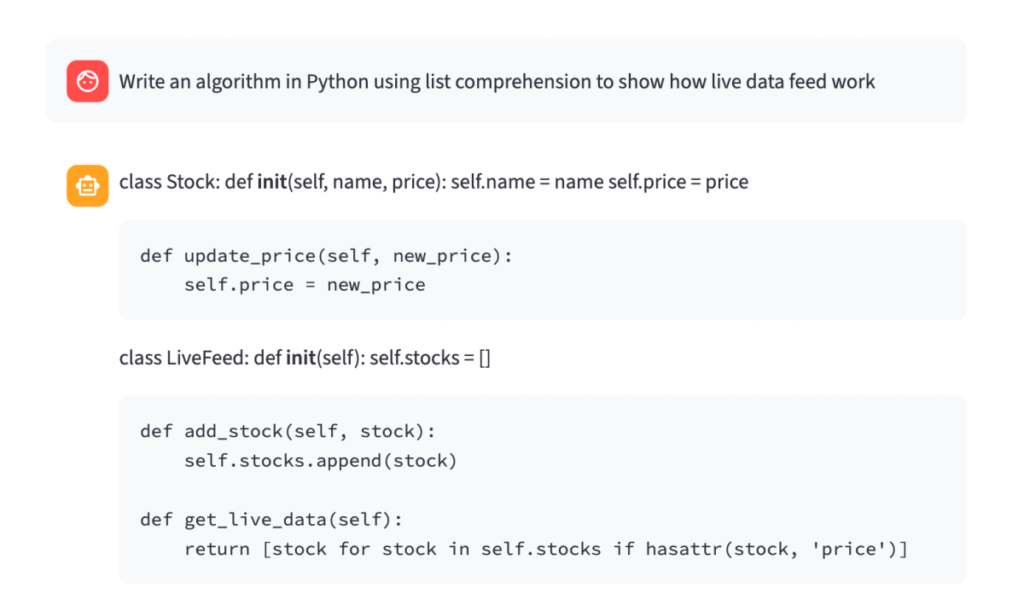
streamlit run app.pyA browser window will open. Here is an example of what you will see:
Save & Load Conversations
The provided Python code already includes basic session/state management using Streamlit’s st.session_state. When you interact with the chat, messages are stored in st.session_state.messages. This means that upon rerunning the app or navigating between pages (if you were to expand it), the conversation history is preserved, allowing users to resume their interactions seamlessly.
Common Challenges & Tips: Hardware limitations
Running local LLMs comes with its own set of challenges. Hardware limitations are a primary concern. The amount of vRAM you have dictates the size of the model you can effectively run. Larger models offer better performance and features but require more vRAM. If you don’t have a powerful GPU, you’ll likely rely on your CPU, which will result in significantly slower inference times. Model size trade-offs are critical; a 7B parameter model might run on less vRAM than a 70B parameter model, but the latter will generally be more capable.
Conclusion
With libraries like Ollama, setting up your first local LLM is within your reach; you will be able to run powerful language models on your device, state-of-the-art, with better privacy and offline access. Of course, hardware limits are still important, but with more accessible models like Llama3, running a local LLM is well within the realm of possibility for most users. This tutorial provides you with the basic steps to begin building your own application-a foundation from which you can build more advanced features like RAG and custom integrations. Now, embrace local AI and start building your intelligent tools today.





A really good blog and me back again.